
Five steps, start to sent
Getting started with StemCounts
Everything you need to go from a new account to your first order with a wholesaler, whether it's shop stock or a wedding. Each guide takes a couple of minutes.
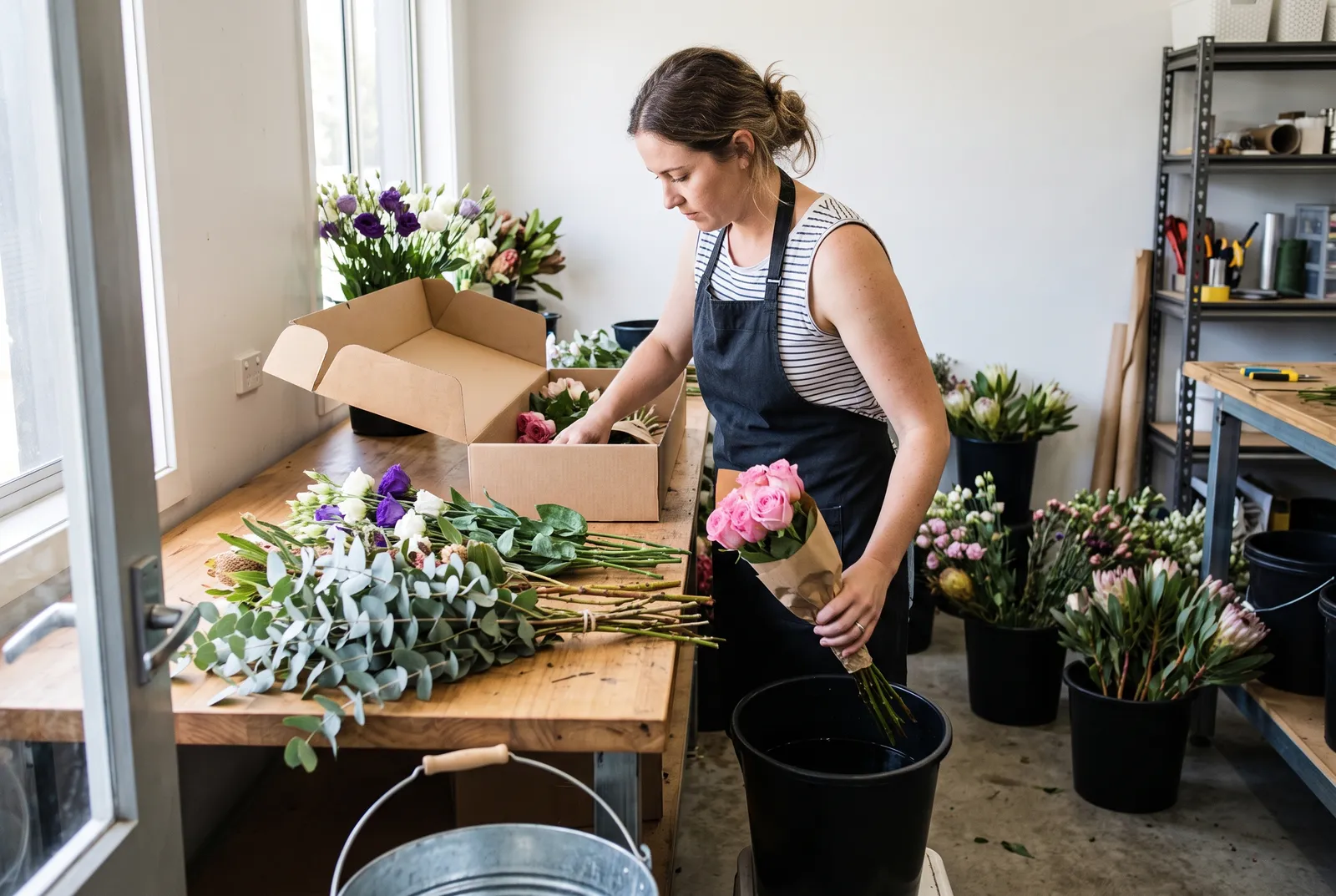
Step 1 of 5
Create a Florist Account
Set up your StemCounts florist account, from signup through to verifying your mobile. It takes about a minute.
- Go to app.stemcounts.com and choose Create an account.
- Select Florist as your account type.
- Enter your details, including the mobile number you want to verify with.
- Set a password and create the account.
- Enter the one-time PIN we text you, then verify.
Step 2 of 5
Add an Order and a New Event
An Order is your basket for the week. Events sit inside it, one for each wedding, funeral or party. This covers creating both.
- Open the Orders panel from your landing page.
- Find the week you need and choose Add Order.
- Choose Add Event for the day the flowers are needed.
- Name the Event, set its date and add the location. The Event date is not the delivery date.
- Choose Add and Edit to open the Event and start adding Arrangements.
Step 3 of 5
Add Arrangements and Flowers to an Order
Build out the Arrangements for an Event, then pick the flowers that go into them. You can search by name or category, or filter the library by colour.
- Open the Event you want to build out.
- Choose Add Arrangement, then name each one and set its quantity and budget per item, ex GST.
- Choose Pick Flowers to open the flower library.
- Search by name or category, or filter by colour to find matching stems.
- Click the colour on a flower card to add that stem. Click it again to remove it.
- Choose Add Selections to add them to the Order.
Step 4 of 5
Add an Event to the Weekly Order
Before an Event can join the weekly Order, every flower has to round to whole bunches. This covers clearing the unrounded stems and sending the Event through.
- Open the Unrounded Bunches table on the Event.
- Use the minus control to take stems out of an Arrangement, or the plus control to buy up to a full bunch.
- Stems left over from rounding up land in the Spares bucket.
- Once everything has rounded, choose Add to Weekly Order.
- You will land back on the Weekly Order page, showing every Event for that week.
Step 5 of 5
Set a Delivery Date and Send an Order
Set the delivery or pickup date, choose who is supplying, then send the week's Order to your wholesaler.
- Open the Weekly Order Details page once all your Events are added.
- Choose the delivery or pickup date.
- Pick your wholesaler for the whole Order from the drop down.
- If a particular stem needs a different supplier, override the wholesaler at the flower level.
- Send the Order. Any notes you left go through with it, and you will get a confirmation.